


My Projects

Notepad.exe


10:36 PM
File
Edit
Search
Help
ShiftFlow - AI Shift Planner
Previous
UX DECISIONS
Simplified Onboarding
The onboarding experience was simplified into three clear steps to make scheduling feel fast and approachable.



Progress indicators were used to guide users through the setup process and reduce cognitive overload.
Timeline Based Planning
The app was designed around a timeline view to give users a quick overview of their entire day. Since shift workers often need fast access to information, the timeline allows them to easily check shifts, tasks, and appointments from a single screen.


Both manual and AI-assisted scheduling options were included to support different planning preferences and create a more personalised experience. This gives users greater flexibility and control while reducing the effort required to organise their schedules.

AI ON

AI OFF
Visual Consistency & Scanability
Consistent card layouts, rounded corners, and reusable icons were used to create a cleaner and more visually organised interface. Grouping information into clear sections improves scan ability, while colour coded shifts help users quickly recognise different schedules without needing to read through the calendar in detail.


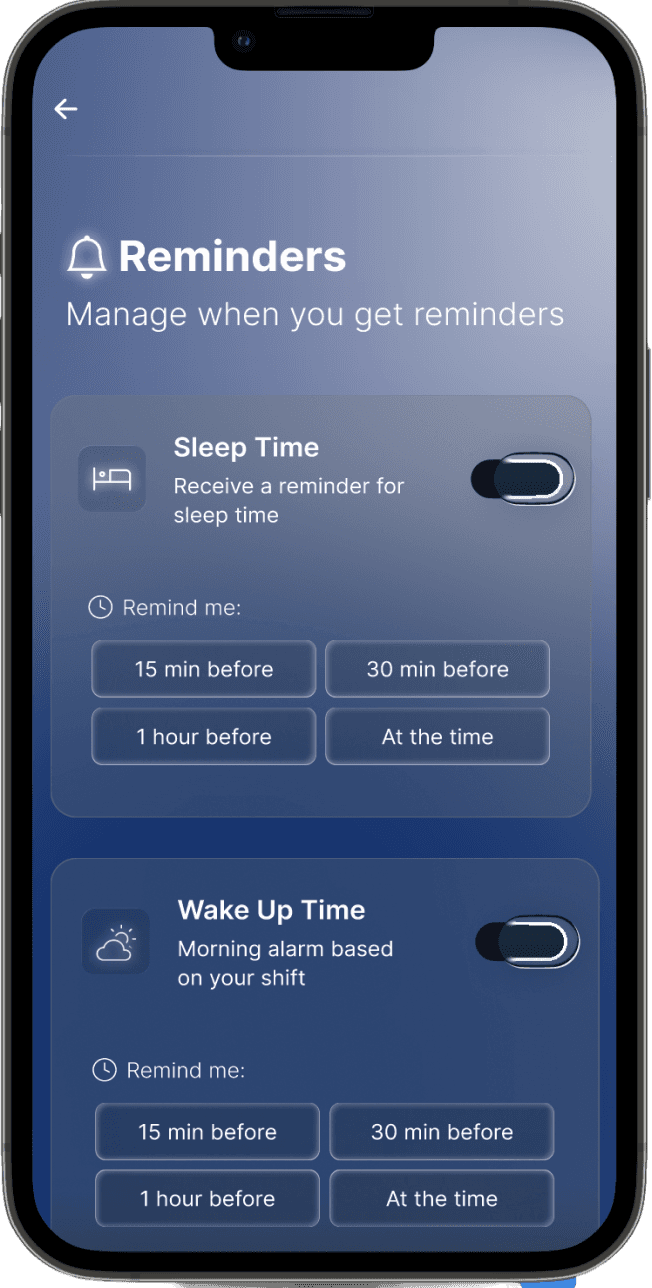
A flexible design system was created to maintain consistency across screens while supporting future feature expansion.
Colours
Primary
#FFFFFF
#04112C
#7A7A7A
#000000
#083572
#506295
Secondary
#2F00FF
#52B1FF
#A2ACD0
#FFC004
#FF7E06
Typography
Aa
Roboto
Logo 64px Medium, Regular
Inter
H1 32px Bold
H2 24px Light
H3 20px Semi Bold
H4 16px Medium
H5 16px Light
B1 16px Regular
Icons
%
Buttons
Primary Button
Default
Pressed
Disabled
Secondary Button
Default
Pressed
Disabled
Components
Input Field
Default
Filled
Drop down
Country / Timezone
UAE (GMT+4)
Upload Box
upload
Cards
Selection Cards
Gym
Timeline Cards
5:00 AM
Wake Up
5:30 AM
Breakfast
7:00 AM
Morning Shift
Duration: 6hr
10:00 PM
Sleep Time
Stats Cards
Tasks
1
Free Time
4h
Sleep
8h
Modal Cards
Delete Item?
Are you sure you want to delete this item? This action cannot be undone.
Yes, Delete
Cancel
Navigation
Back Button
Menu (Hamburger)
Floating Action Button
Step Indicator
STEP 1 OF 3
Tab Switcher
Tasks
Appointments
Activities
Effects
Blur (Glassmorphism)
Blur: 60 Opacity:25%
Shadow
Blur: 60
Shadow: Y20 / Blur 40
Glow
Blur: 60 Opacity: 10%
Gradient


Switches / Toggles
Toggle (On)
Toggle (Off)
Example Usage
Flexible Scheduling
Let AI find the best time around shifts
MICROINTERACTIONS
Subtle microinteractions and transitions were added throughout the experience to create a smoother and more responsive interface. Animations such as loading progress, toggle interactions, and screen transitions help improve feedback and make the app feel more intuitive and engaging.
Loading Animation
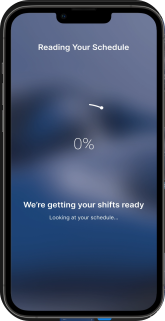
Animated loading progress with automatic transition.
AI Toggle
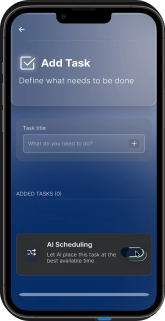
Interactive AI scheduling toggle.
Drop Down Menu

Expandable time selection interaction.
USABILITY TESTING
I tested the prototype with real shift workers to validate the experience and identify opportunities for improvement.

4
Participants
Shift workers

9
Tasks

Goal
Evaluate usability of core features and AI assisted planning

60-70 min
Per session
Individual remote sessions

High
Task success rate
Tasks Tested

Upload a roster
Review generated schedule
Identify shifts
Check free time
Add an activity
Edit an activity time
Toggle AI scheduling
Set a reminder
Update preferences
Key Findings
Users completed core tasks successfully
Participants were able to upload a roster, review schedules, identify shifts, and check free time without major issues.
Unclear purpose of the Flexible Scheduling toggle
Some users were unsure what the toggle did and the difference between enabling and disabling
Al scheduling.
Editing activity times was not intuitive
Most users tried tapping the activity card instead of the time field, showing that the editing action was not sufficiently visible.
Improvements Made
Clarified Al Scheduling Toggle
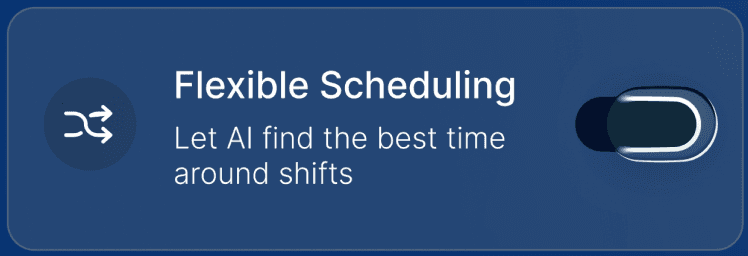


Before
After
Added supporting text to explain what the toggle does and the difference between enabled and disabled states.
Improved Time Editing
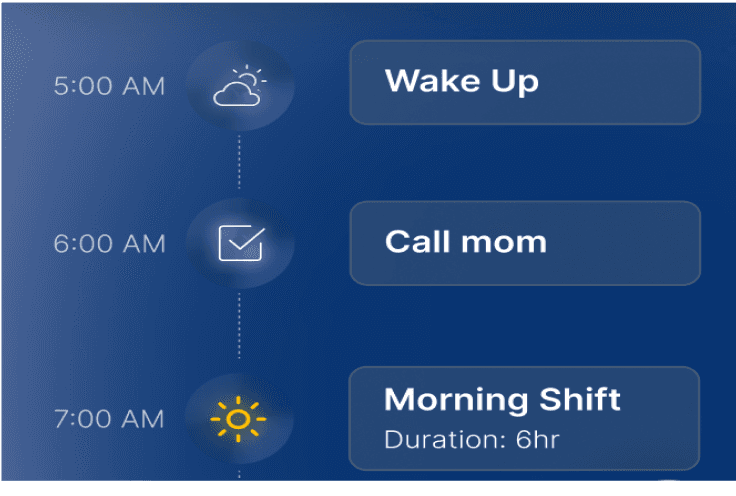

Before
After
Improved the visibility of editable times by increasing their size and contrast, and made the entire timeline card clickable so users could edit the time by tapping either the card or the time.
Clear Feedback on Changes

Added a confirmation messages to make manual adjustments feel more reliable and reassuring
REFLECTION
Challenges
Designing a scheduling experience that helped shift workers understand their day without feeling overwhelmed.
Maintaining visual consistency across 50+ screens while keeping the interface clean and cohesive.
Balancing AI automation with manual control so users always felt in charge of their schedule.
What I Learned
I learned how to simplify complex planning flows into a more intuitive experience.
I strengthened my ability to maintain a consistent design system across multiple screens.
Usability testing reinforced how small interface changes can significantly improve clarity and user confidence.
LOOKING AHEAD

Develop a fully functional version of ShiftFlow.
Test the product with a larger and more diverse group of shift workers over a longer period.
Refine the AI planning logic using real usage data and user feedback.


PROJECT RESOURCES
View Full Wireframes
Low-fidelity screens & flow exploration
View Interactive Prototype
High-fidelity prototype (Interactive in Figma)
MyProjects
File
Edit
Search
Help
Address

C:\Maryam\Portfolio\Projects.exe
ShiftFlow
Ai Shift Planner
(UX Project)
WorkBowl
Healthy Food App
(Food Ordering UX)
Lolly Abaya
Fashion Brand Website
(Fashion E-commerce UI)

Back

Forward

Up
Cut

Copy
Paste
Undo
Delete

Ready

Project 3 of 3


